> For the complete documentation index, see [llms.txt](https://www.help.zimconnections.com/llms.txt). Markdown versions of documentation pages are available by appending `.md` to page URLs; this page is available as [Markdown](https://www.help.zimconnections.com/corporate-esim-activation-guide.md).
# Corporate eSIM Activation Guide
How to Activate your Corporate eSIM Plan
Here’s a quick guide to set up your eSIM on your device. Before getting started, keep these three bits in mind:
* Once you’ve received your eSIM, install it before your trip
* Make sure you have a stable internet connection for the installation
* Once at destination, turn on data roaming for your eSIM plan
## **Apple Device Installation**
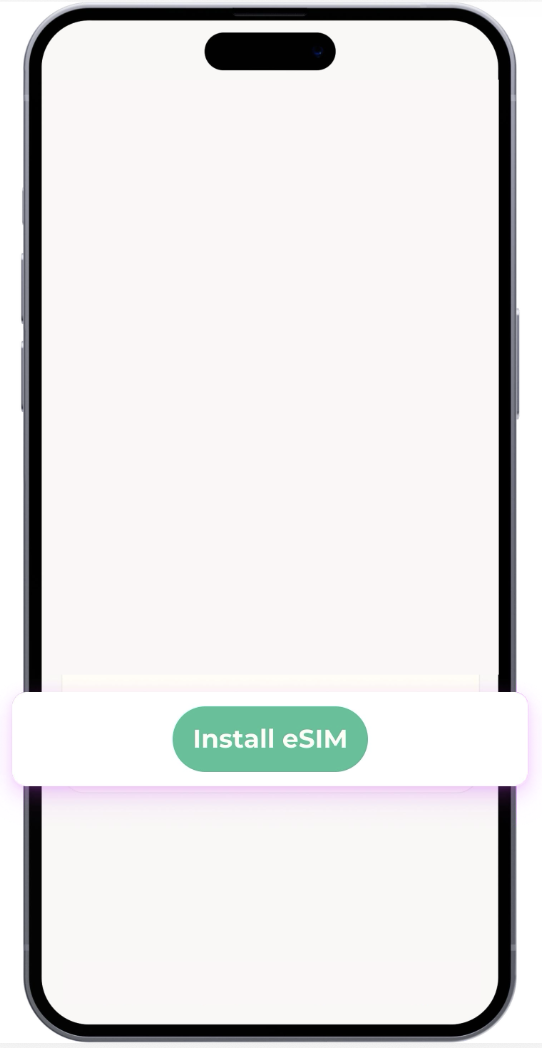
1 . After receiving your eSIM plan to your email > Click the “Install eSIM” button. > Set up your plan following the instructions.
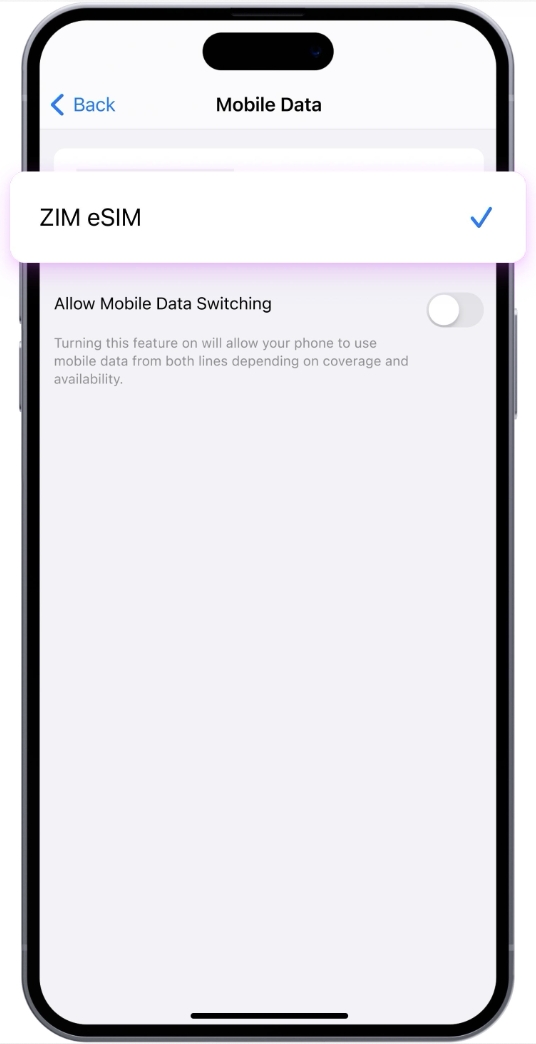
2. When you arrive at your destination, make sure you have set the eSIM as your Mobile Data line. Do this by going to your phone Settings > Mobile Service > Mobile Data > Choose your new Corporate eSIM.
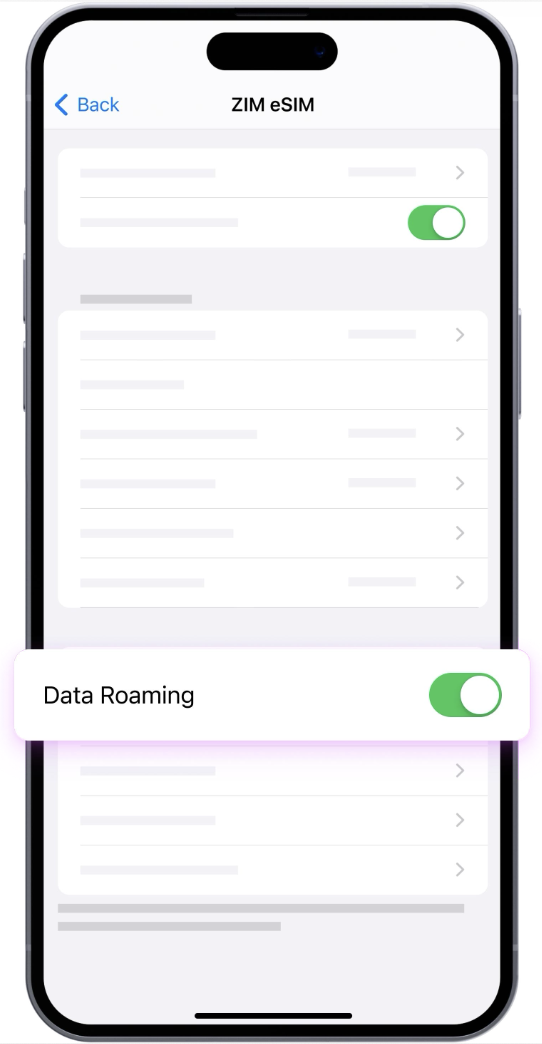
3. Remember to turn On Data Roaming for the Corporate eSIM and turn Off Data Roaming for your primary SIM. Do this by going to your phone Settings > Mobile Service > Corporate eSIM > turn On Data Roaming.
## **Android Device Installation\***
\* We used a Samsung Galaxy to show you the installation and activation process for an Android device; this might be different depending on your Android device.
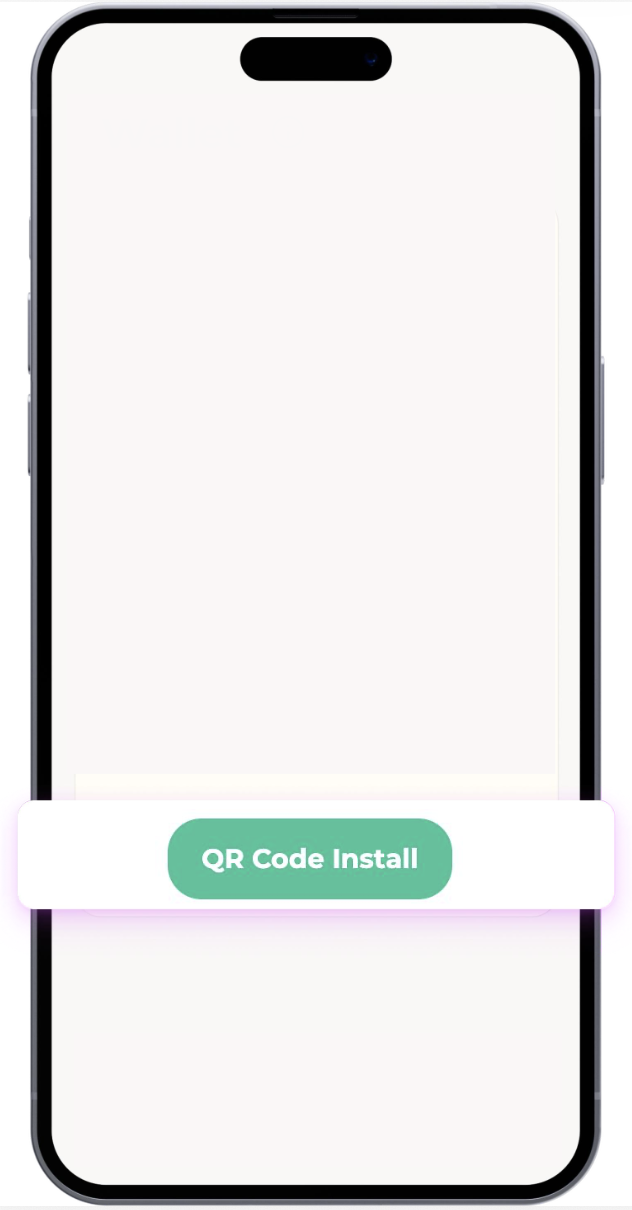
1. After receiving your eSIM plan to your email > Click the “QR Code Install” button. You might be prompted to select an app to install your new Corporate eSIM plan (optional) > Choose “Phone Services” or click on the “Set up eSIM” Button > Complete the final steps. It will take a moment for your new eSIM to connect.
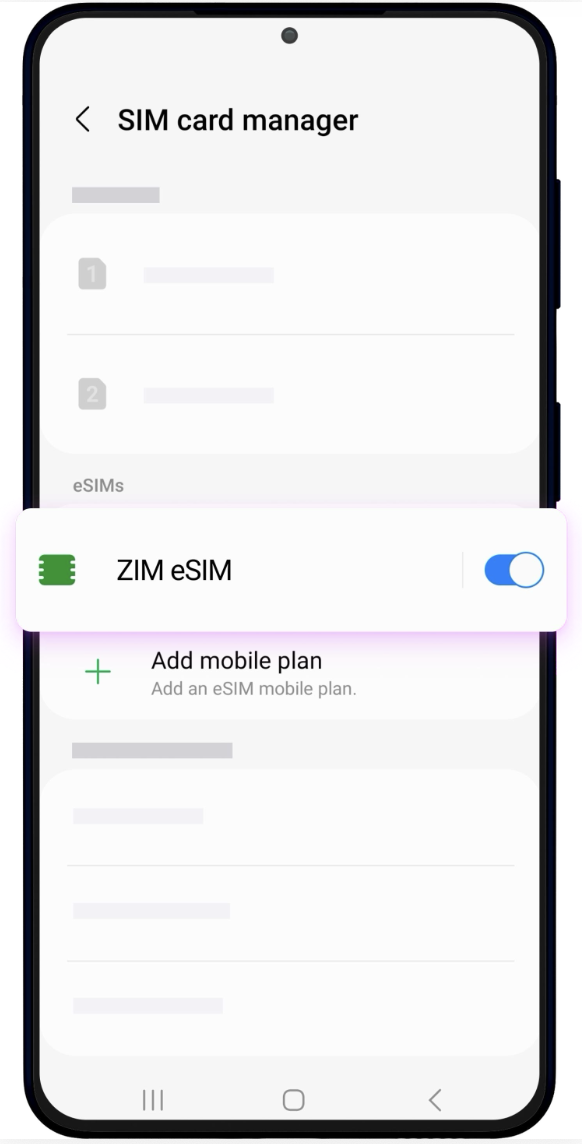
2. When you arrive at your destination, make sure you have set the Corporate eSIM as your Mobile data line. Do this by going to your phone Settings > Connections > SIM card manager. Choose the Corporate eSIM as your Mobile data line by turning the toggle On.
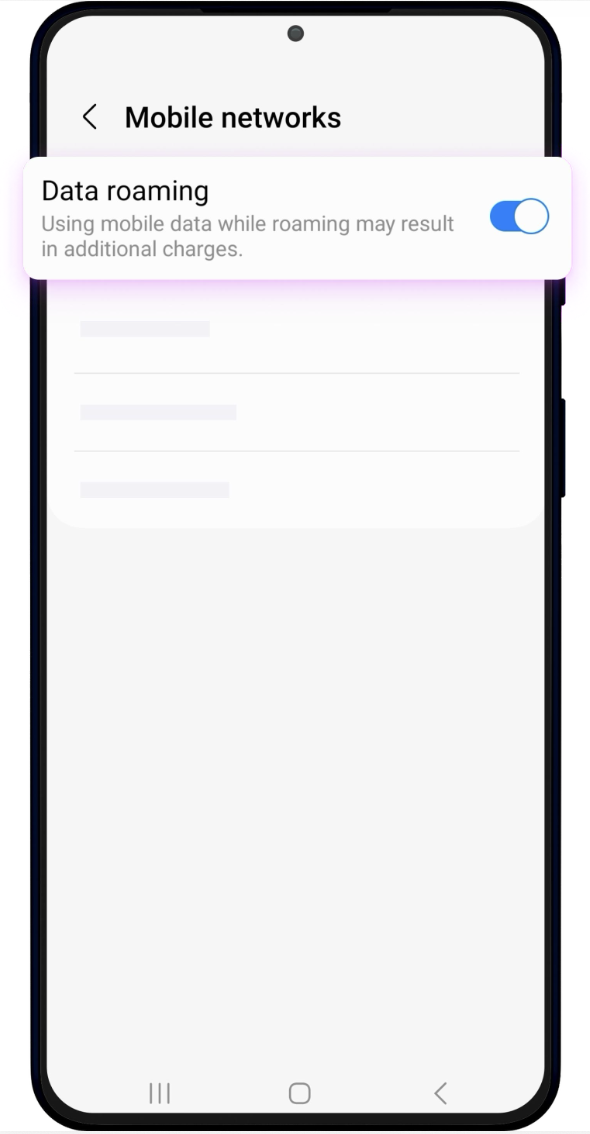
3. Remember to turn On Data roaming for the Corporate eSIM and turn Off Data roaming for your primary SIM. Do this by going to your phone Settings > Connections > SIM card manager. Make sure Data roaming is enable for the Corporate eSIM by turning the toggle On.
> If you need support, please send us an email at .